Reader
MeManga has a built-in reader for the chapters you have downloaded. Open a series from the Library and choose Read on a downloaded chapter, or use Continue reading at the top of the Library.
Page layouts
The toolbar has three layouts:
| Layout | How it shows a chapter |
|---|---|
| Continuous scroll | All pages stacked in one vertical scroll. |
| Single page | One page at a time. |
| Two-page spread | Two pages side by side. |
The layout is remembered for each series. You can also set it on the series' page under Reader layout.
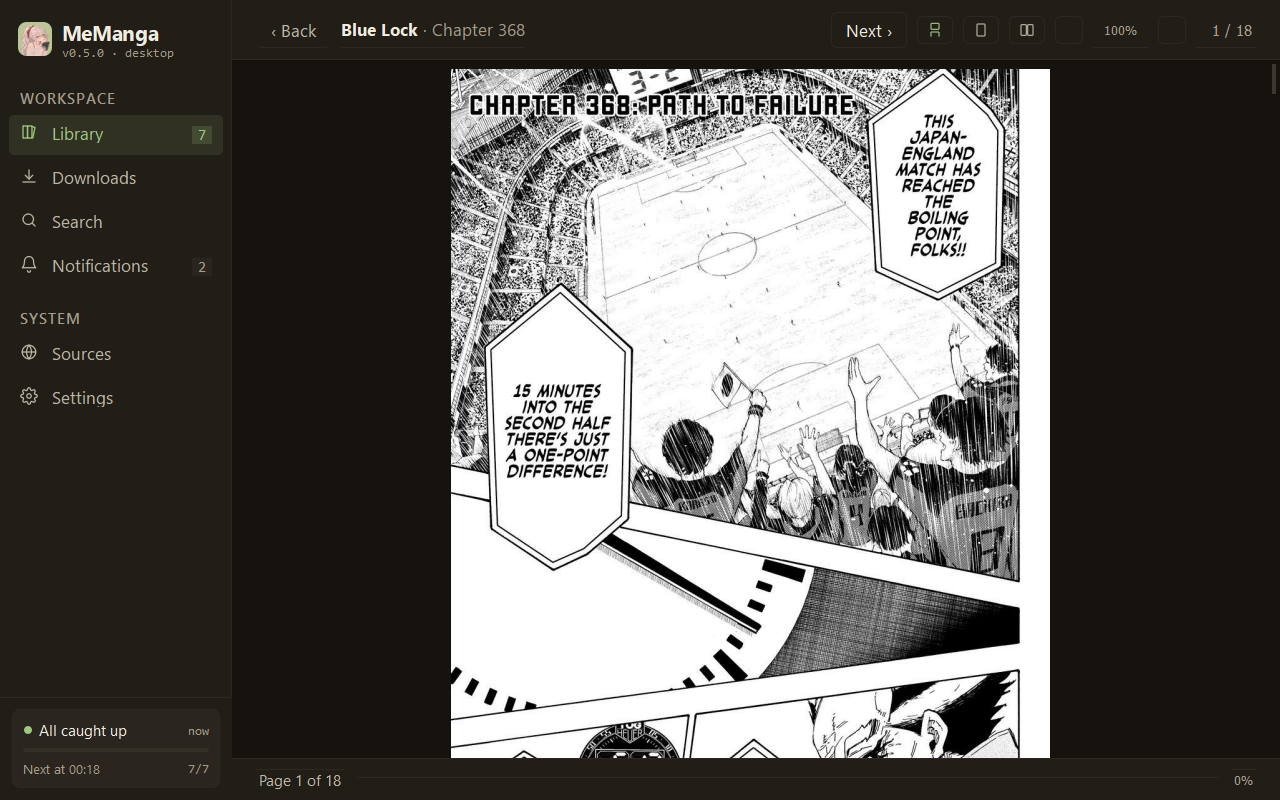
The reader. Desktop app, version label v0.5.0; the development version may look different. The page shown is from Blue Lock, which belongs to its owners and appears only to demonstrate the reader. See Using sources responsibly.
Zoom
Use the zoom buttons in the toolbar or the keyboard. Zoom goes from 50% to 250% in steps of 25%. F switches fit-to-width on and off. When a zoomed page is wider than the window, drag it with the mouse to move around.
Keyboard
These keys work in the reader. The app's other shortcuts are on the Keyboard page.
| Key | Continuous scroll | Single page and two-page spread |
|---|---|---|
| Up, Down | Scroll half a screen | Scroll half a screen |
| Space, Page Down | Scroll one screen down | Next page or spread |
| Page Up | Scroll one screen up | Previous page or spread |
| Home, End | Top or bottom of the chapter | First or last page |
| Right, Left | Next or previous chapter. When a zoomed page is wider than the window, they move across it instead. | Next or previous page or spread |
| N, P | Next or previous chapter | Next or previous chapter |
| +, - | Zoom in or out | Zoom in or out |
| F | Fit to width on or off | Fit to width on or off |
| Esc | Back to the series' page | Back to the series' page |
Ctrl+0 sets the zoom back to 100%.
Moving between chapters
Prev and Next in the toolbar, and the N and P keys, move between the chapters you have downloaded. In continuous scroll there is also a Next button at the end of the chapter.
Where you left off
The reader remembers your place in each chapter. When you open a chapter again, it continues from about where you stopped.
A chapter counts as read when you reach its end. After that it opens from the first page again.
Prefetch the next chapter
In manual mode the next chapter may not be downloaded yet when you finish the current one. With Settings → Advanced → Reader → Prefetch the next chapter while reading turned on, MeManga downloads the next chapter in the background while you read, so Next keeps working.
This setting is off by default.
Remove chapters after reading
With Settings → Advanced → Reader → Remove chapters after reading turned on, a chapter's file is removed from your download folder after you finish it in the reader. Your read progress is kept. The chapter's row still says Read and has a Download button again, and the chapter is counted under the Not downloaded filter.
This setting is off by default. When you leave the finished chapter, its file is moved to the Recycle Bin on Windows or the Trash on macOS and Linux, so you can restore it. If it cannot be moved there, it is kept.
What the reader can open
The reader opens chapters in every format MeManga saves: PDF, EPUB, CBZ, ZIP and image folders.