Library and downloads
This page covers following series and downloading chapters in the desktop app. The reader and the settings have their own pages.
Follow a series
There are two ways to add a series to your library.
- Search. Open Search, type a title and press Enter. MeManga asks every enabled source and lists the results. Choosing a result opens the add dialog with its details filled in.
- Add manga. In Library, choose Add manga and paste the address of the series page on a supported source.
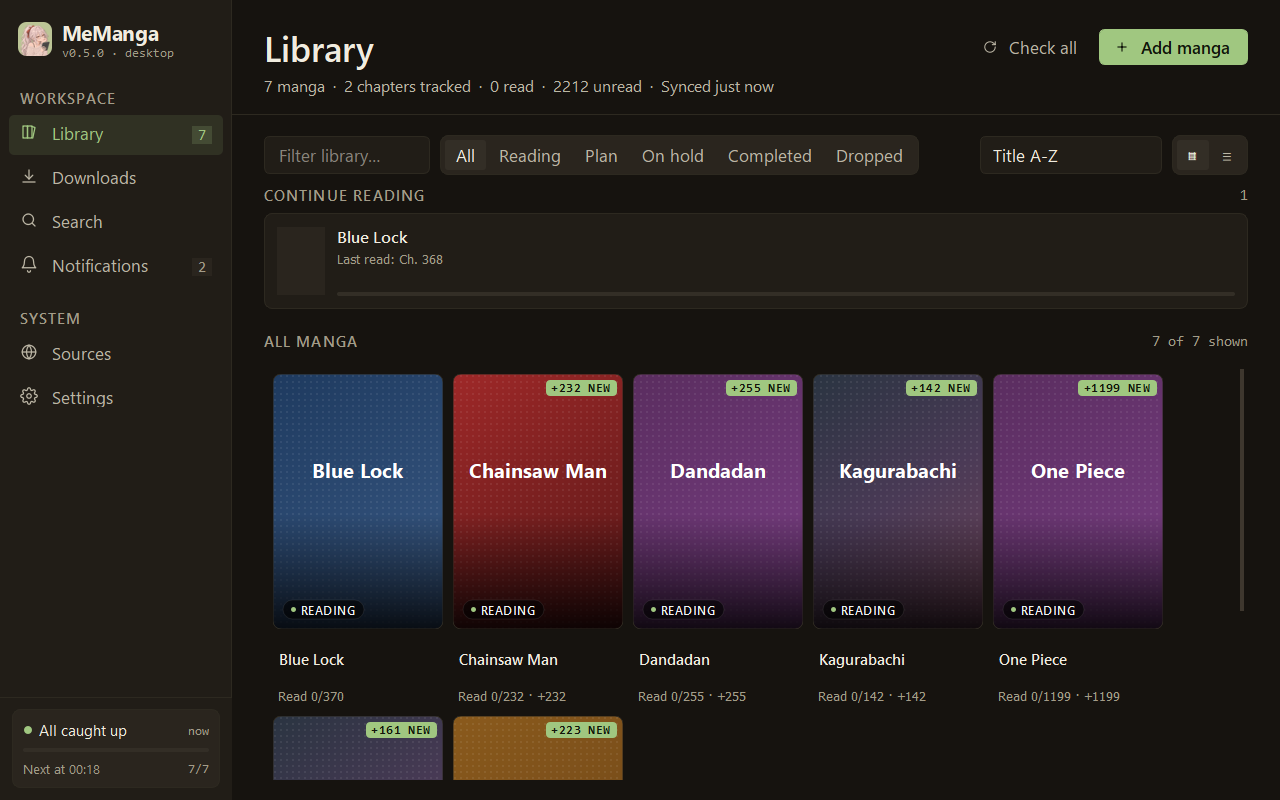
The Library. Desktop app, version label v0.5.0; the development version may look different. Series titles and artwork on this page belong to their owners and appear only to demonstrate the app. See Using sources responsibly.
The add dialog asks for:
| Field | What it does |
|---|---|
| Source URL | The series page on the source. The title is detected from it; you can type your own instead. |
| I'm currently on chapter | Optional. See chapters you read elsewhere. |
| Reading status | Reading, Plan to read or Paused, which is saved as On hold. Set Completed or Dropped after adding, with the status picker on the series' page. |
| Add backup source | Optional second site with the same series. See Use a backup source. |
| Fallback delay (days) | How many days a new chapter found only on the backup waits for the main source before it is taken from the backup. |
Which series are checked
Check all in the Library looks for new chapters only for series with the status Reading. Series that are on hold, completed or dropped are skipped. Check updates on a series' own page always checks that series, whatever its status.
Auto and manual mode
Each series has a Mode, set on its page.
| Mode | What happens after a check |
|---|---|
| Auto | New chapters are downloaded. |
| Manual | New chapters are listed, and you download the ones you want with the Download button on each row. |
In manual mode a check tells you how many new chapters are available and leaves them for you to pick.
A series' page also has Download from…, which downloads from a chapter number you give (use 0 for all chapters from the beginning), and Download all.
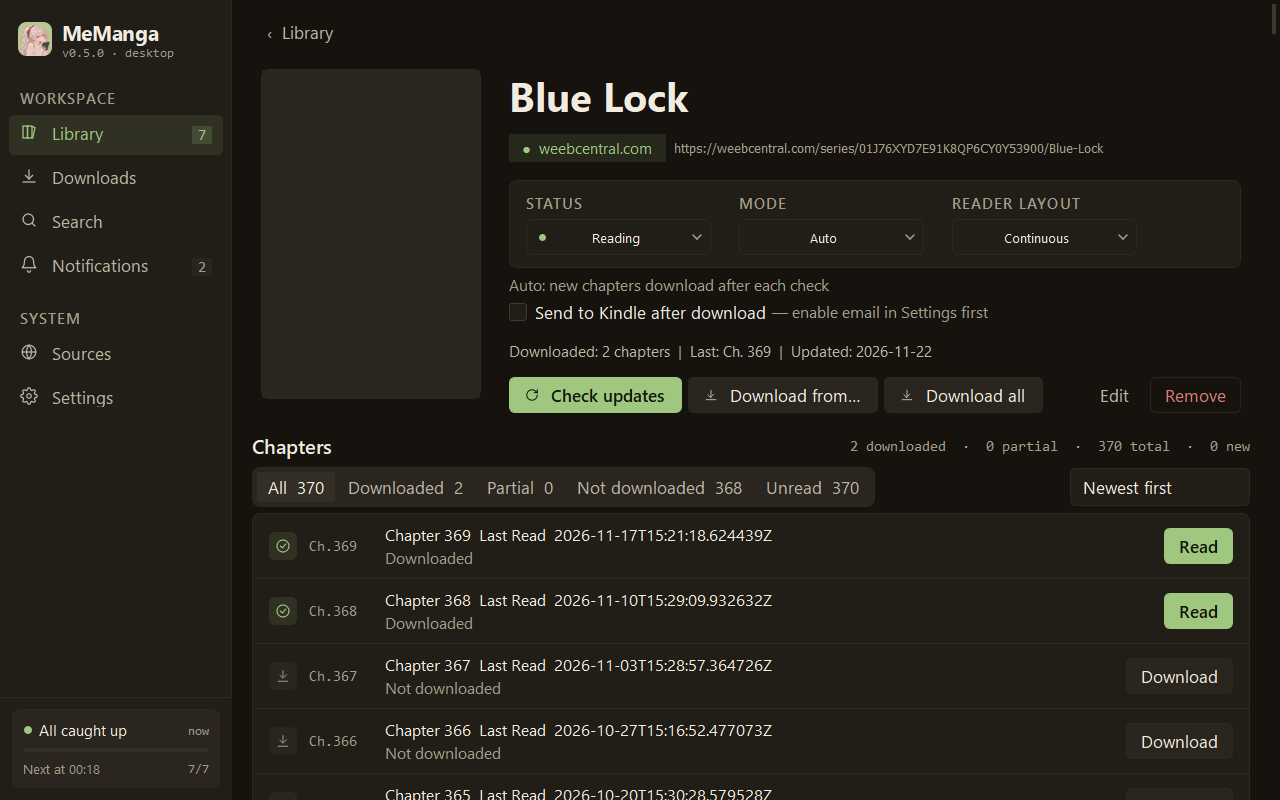
A series page with its controls and chapter list. Desktop app, version label v0.5.0; the development version may look different.
Chapters you read elsewhere
If you have already read part of a series somewhere else, enter the chapter you are on in I'm currently on chapter when you add it. Every chapter before that number is marked Read elsewhere. Those chapters are not treated as new and are not downloaded by a check.
Leave the field empty to start from the beginning.
The chapter list
A series' page lists its chapters. Each row shows where the chapter stands:
| Row says | Meaning |
|---|---|
| Not downloaded | Not on disk yet. Download fetches it. |
| Downloaded | On disk. Read opens it in the reader. |
| Read | You finished it in the reader. |
| Read elsewhere | Marked as already read when you added the series. |
| Partial, with a page count | Downloaded with some pages missing. Retry downloads it again. |
Chips above the list filter it by Downloaded, Partial, Not downloaded and Unread, and the list can be sorted newest or oldest first.
Partial chapters
Sometimes a source fails to deliver a few pages of a chapter. By default MeManga discards such a chapter. To keep it instead:
- Open Settings → Advanced → Partial Chapters.
- Turn on Allow partial chapters.
- Set Max pages allowed to fail, as a percentage of the chapter's pages.
A chapter that is missing more pages than this limit is still refused. A chapter that was kept shows as partial in the list, with the number of missing pages, and can be retried.
Suspicious batches
A source sometimes reports chapters that do not exist, for example a sudden jump of dozens of chapters. MeManga compares each batch of new chapters with the series' usual pace. When a batch looks wrong:
- If the series has a backup source and it lists at least half of those chapters, the batch is accepted.
- Otherwise the batch is held back and a warning appears in Notifications. Chapters that were already known stay downloadable.
The desktop app has no button to accept a held batch. To accept it, use the command line:
memanga check --force-suspiciousDownloads
Downloads shows what is being downloaded and what has finished, in three tabs: Active, Completed and History.
- Pause all stops new downloads from starting. Downloads already running finish.
- Cancel all cancels the queue.
- Open folder opens your download folder.
Notifications
Notifications keeps a history of what MeManga did: new chapters found, finished downloads, chapters sent to Kindle, warnings and errors. Entries are grouped by day and can be filtered by New chapters, Downloads and System.
Mark all read clears the unread count. Clear all deletes the history after asking.
Settings
Themes, the download folder, file names, backups and more are described on the settings page.
Removing a series and failed sends
- Remove on a series' page keeps your read progress and download history unless you choose Also delete progress and history. Downloaded files stay in your download folder either way.
- A chapter whose email to your Kindle failed says Not sent to Kindle on its row and can be sent again from there. See Send chapters to a Kindle.
- Search can show why a source failed, with Failure details.